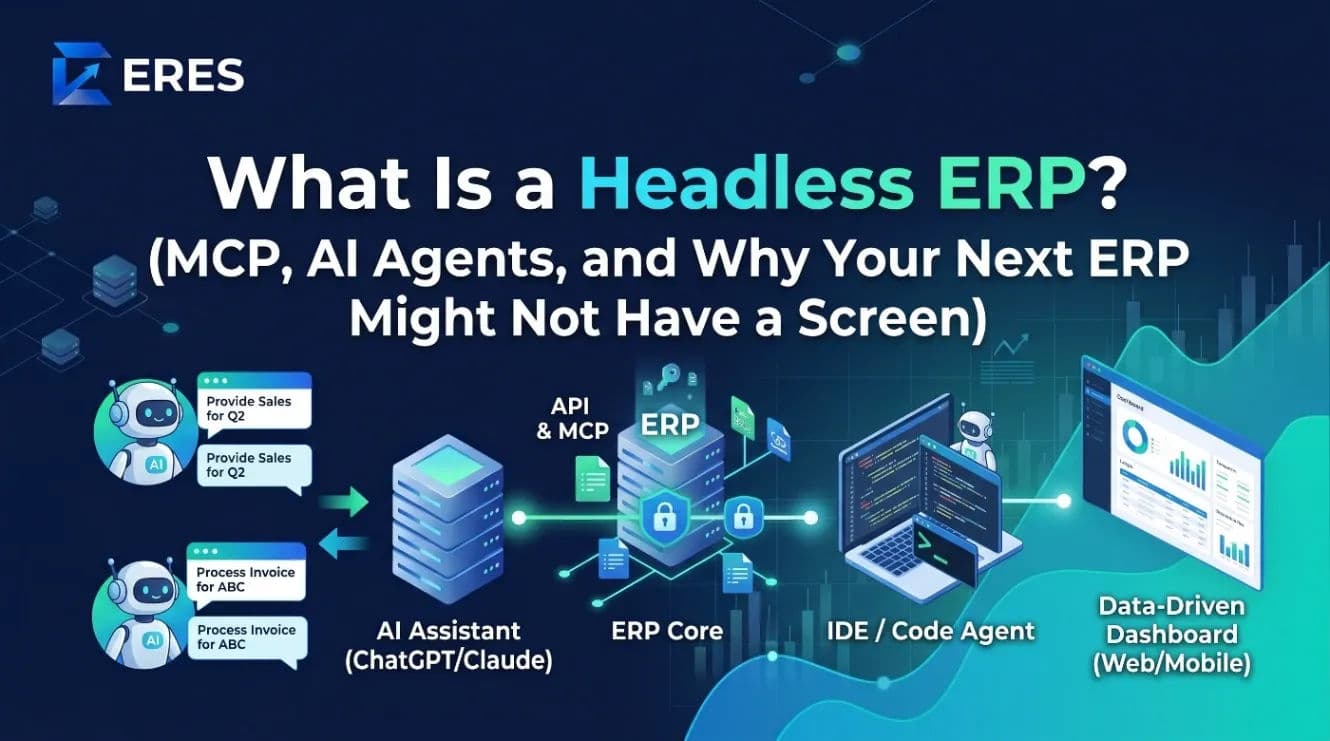
How to Connect ChatGPT or Claude to Your Accounting Software (Step by Step, Using MCP)
You can connect ChatGPT or Claude to your accounting software in a few minutes if the software exposes an MCP server. Here are the steps, the security questions to settle first, twelve prompts worth trying on day one, and the things an AI assistant still should not do with your books.
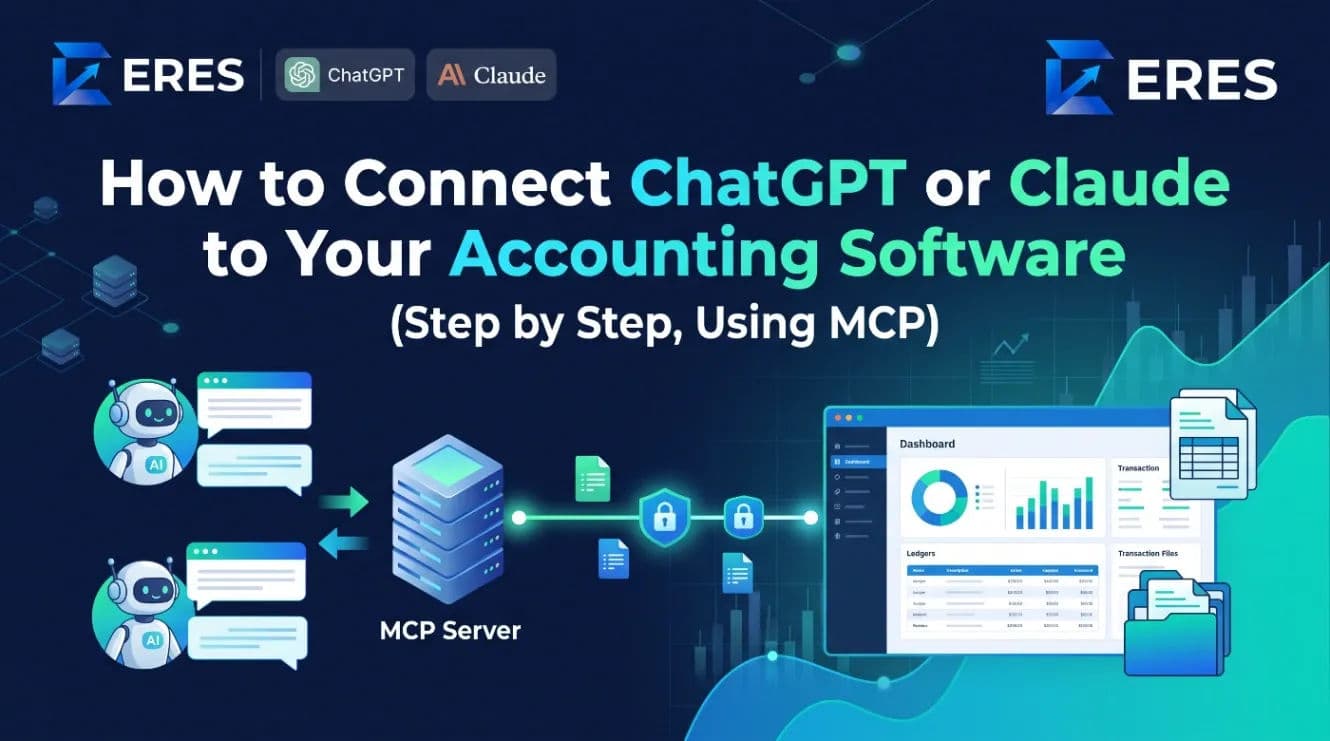
To connect ChatGPT or Claude to your accounting software, the software needs to expose a Model Context Protocol (MCP) server; you then add that server in the assistant's settings, sign in to your accounting account when prompted, and the assistant can read your books and — if you allow it — post transactions under your own permissions. The whole setup takes a few minutes and no code.
This guide covers the setup for the main clients, the questions to settle before you connect anything, twelve prompts that show what the connection is good for, and the limits that still apply.
Before you connect: four questions
- Does the accounting system have a real MCP server? Not a Zapier action, not a CSV upload — a server the assistant can authenticate to and call tools on. Vendors that have one publish a connection URL.
- How does it authenticate? OAuth per user is the standard you want: the assistant gets a token for your login, with your role. A single company-wide API key pasted into a chat client is not acceptable for books.
- Which tools are read and which are write? Start with read tools. Enable write tools once you have seen how the assistant behaves and confirmed that approvals still apply.
- What is the assistant provider's data policy? Business and enterprise tiers of the major assistants generally exclude your data from model training; confirm for your plan.
Setup in ChatGPT
- Open ChatGPT settings and go to the connectors or apps section (names change between releases; look for "Connectors", "Apps" or "MCP servers").
- Add a custom connector and paste the MCP server URL your accounting vendor provides.
- ChatGPT redirects you to the accounting system's login page. Sign in with your normal account. If your company uses two-factor authentication, complete it as usual.
- Approve the permission screen. It should name the scopes (for example, read reports, post vouchers) and the organization.
- Back in ChatGPT, start a new chat and ask a read-only question to confirm the link: "Give me a company overview for this month."
Setup in Claude
- In Claude's settings, open the integrations or connectors section and choose to add a custom integration (MCP server).
- Paste the server URL and save.
- Complete the OAuth sign-in to the accounting system and approve the scopes.
- In a new conversation, enable the integration for that chat if the client asks, then test with a read query.
Setup in Cursor or a developer agent
Developers can add the server to the editor's MCP configuration with the same URL and OAuth flow. This is useful for building custom automations — a nightly cash summary, a reconciliation checker — on the same permissioned tools rather than against the database.
Twelve prompts to try on day one
Read-only prompts (safe immediately):
- "Give me a company overview: cash and bank, receivables, payables and sales for this month versus last month."
- "List customers with invoices overdue by more than 30 days, sorted by amount."
- "Show the ledger for supplier Northline Packaging for the last quarter and summarise the balance movement."
- "Which expense categories grew the most this quarter compared with the previous one?"
- "Run a trial balance as at the end of last month and tell me if anything looks unbalanced or unusual."
- "Which inventory items are below their reorder level, and what is the value of the shortfall at last purchase cost?"
- "What was the gross margin by product category for the last 90 days?"
- "List journal entries posted in the last seven days with a value over 5,000 and who posted them."
Write prompts (enable once you trust the setup; they obey your approval settings):
- "Record a USD 85 courier expense, paid from petty cash today, narration 'samples to Delta Foods'."
- "Draft a payment reminder for the three most overdue customers and send it on WhatsApp."
- "Create a purchase order to our usual supplier for the items that are short for next week's planned batches."
- "Post a journal entry accruing USD 1,200 of electricity for last month to the utilities expense and accrued liabilities."
Note how the assistant resolves "our usual supplier" or "the three most overdue customers": it calls a read tool first, then a write tool with the result. A well-built MCP server keeps conversation context so follow-ups like "now show me that supplier's open orders" work.
What a good first fortnight looks like
The connection is only useful if it changes a habit. A pilot that works usually looks like this:
- Days 1–3: the owner asks daily questions. Cash, sales, overdue customers. The goal is to replace the "can you send me the report" message to the accountant.
- Days 4–7: the accountant tests the edges. Ask about a closed period, a locked account, a user without access. Note anything the assistant answers that it should not, and raise it with the vendor.
- Week 2: one write use case. Petty-cash expenses or payment reminders are the usual choice — small, frequent, easily reviewed. Keep approvals on.
- End of week 2: review the activity log. Every assistant action should be there with the user who authorised it. Decide which roles get write tools going forward.
Teams that skip to write tools on day one tend to switch the integration off after the first surprise. Teams that run the read-only fortnight tend to keep it, because by then the owner has stopped opening the reports menu.
Security checklist
- Per-user OAuth, no shared keys.
- Role-bound tools. Ask your vendor to confirm that a user without payroll access cannot read payroll through the assistant.
- Approvals apply. Post a test expense and confirm it lands in the approval queue if your company requires approvals.
- Audit log. Check that the test posting shows your user and the source (assistant/MCP) in the activity log.
- Period locks. Try to post into a closed month; it must be refused.
- Revocation. Disconnect the integration and confirm the next call fails. Also confirm that a password change or account deactivation revokes the token.
- Least privilege for the pilot. Start with one user, read-only, for two weeks.
What an AI assistant should not do with your books
- Decide the accounting treatment for anything non-routine. It can draft a journal; your accountant decides whether it is right.
- Close a period or reverse approved entries without a human in the loop.
- Bypass approvals. If it can, the integration is wrong, not the assistant.
- Work from pasted spreadsheets when a live connection exists. Stale data produces confident, wrong answers.
- Be the only reviewer of its own postings. Keep a weekly review of assistant-created entries during the first months.
How this differs from "AI features" inside accounting apps
Many accounting products now ship an assistant inside their own screen. That is useful, but it is a single vendor's model in a single place. An MCP connection lets you use the assistant you already pay for — in the chat window where you plan your day, alongside your email, documents and other tools — and lets developers build on the same connection. ERES, for example, publishes its MCP server openly: OAuth bound to the user's own role, read and write tools that respect approval settings, and support for ChatGPT, Claude and Cursor. The workflow builder handles the scheduled, no-conversation automations.
Frequently asked questions
Does connecting ChatGPT to my accounting software give OpenAI my data?
The assistant receives the results of the tool calls you make in that conversation, under the provider's data policy for your plan. It does not get a copy of your database. Check the training and retention terms for the tier you use.
Can I let the assistant read but not write?
Yes, if the MCP server separates read and write tools and lets an administrator restrict them by role. Ask your vendor; this is a reasonable requirement.
Will it replace my bookkeeper?
No. It removes the report-pulling and routine-entry part of the job and makes the owner self-sufficient for questions. Judgement, reconciliation and compliance stay with people.
What if the assistant makes a mistake in a posting?
The same as a human mistake: it is in the audit log under your user, it went through your approval policy, and it can be reversed. The point of running write tools through the normal controls is that mistakes stay recoverable.
Ready to try it? Create a free ERES account, then follow the MCP connection guide to link ChatGPT or Claude in minutes.
Run your books on ERES
Accounting, inventory, POS, manufacturing, payroll and tax in one system — and an MCP server so your AI agent can use it too.